Managing Google Ads effectively isn’t just about setting up campaigns – it’s about constant monitoring to ensure your budget drives real results, not wasted clicks. For tree service businesses, this means tracking the right metrics, refining keywords, and adjusting strategies to convert clicks into actual jobs like tree removal or trimming. Here’s a quick breakdown of how to stay on top of your campaigns:
- Track Conversions: Use tools like Google Tag Manager to monitor calls, form submissions, and map requests. Ensure conversion tracking is active and accurate.
- Daily Metrics Check: Focus on click-through rate (CTR), cost-per-click (CPC), and conversions to catch issues early.
- Keyword Refinement: Review search terms weekly, add high-intent keywords, and block irrelevant ones with negative keywords.
- Device Performance: Evaluate mobile vs. desktop results bi-weekly and adjust bids accordingly.
- Ad Extensions & Quality Score: Update extensions monthly and optimize for relevance, CTR, and landing page experience.
- ROAS Analysis: Calculate Return on Ad Spend quarterly to identify which campaigns drive revenue and reallocate budgets effectively.
- Competitor & Seasonal Trends: Use tools like Auction Insights to monitor competitors and adjust bids during storm seasons or peak demand.
- Pause Underperformers: Stop running ads or keywords with low CTRs, poor Quality Scores, or high costs without conversions.
- Test Ad Copy: Experiment with responsive search ads to find the messaging that resonates best with your audience.
By following this checklist, you can cut waste, maximize ROI, and turn Google Ads into a reliable lead-generation tool for your business.
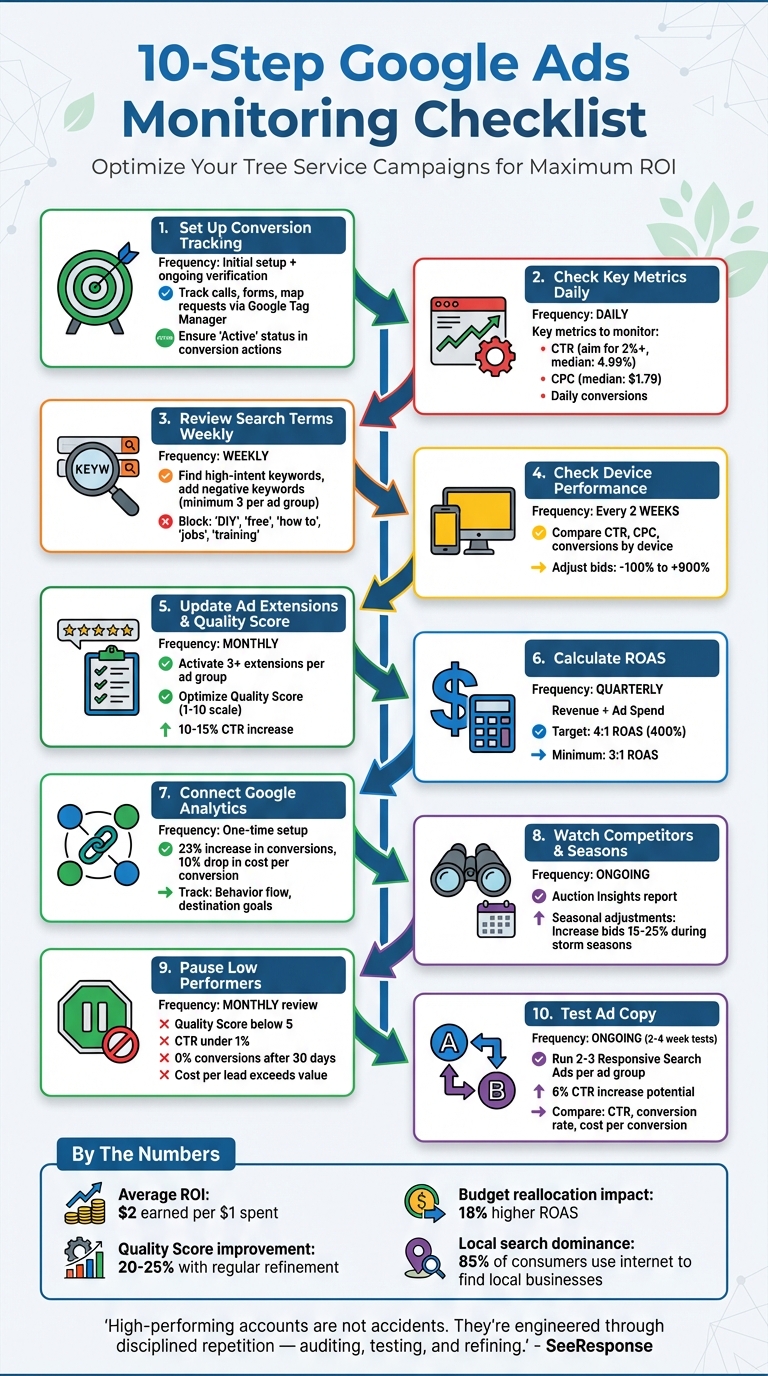
10-Step Google Ads Monitoring Checklist for Tree Service Businesses
How to Optimise Google Ads – My Simple $73M Checklist
Step 1: Set Up Conversion Tracking
Conversion tracking helps you figure out which ads are bringing in tree service jobs and which ones are just draining your budget. Without it, you’re left guessing whether a $500 spend brought in emergency tree removal calls or just a handful of inquiries.
Here’s how to verify and implement effective tracking setups.
Google Ads offers three ways to track call conversions: calls made directly from ads using forwarding numbers, calls to a phone number displayed on your website, and clicks on a phone number from mobile devices. By tracking all three, you get a clearer picture of how customers interact with your business.
"Conversion tracking is the only way to measure the effectiveness of a particular ad or advertisement campaign." – Tymofii Sankov, Author, Stape
Verify Conversion Actions
To check if your conversion tracking is working, go to the "Goals" menu in your Google Ads account and look at the "Status" column in the conversion actions table. If it says "Active", your conversions are being tracked. However, if you see "No recent conversions", it could mean that your tags aren’t firing correctly or your ads haven’t reached the right audience yet.
For phone call tracking, make sure call reporting is enabled in your account settings. Set a minimum call duration of 60 seconds to filter out short, irrelevant calls. To track form submissions, use a "URL contains" condition (e.g., "URL contains /thank-you") to log a conversion when someone lands on your confirmation page. This method is straightforward and doesn’t require extra coding.
You can use Google Tag Assistant to confirm that your tracking tags are installed and working properly. Keep in mind, conversion data might take up to 24 hours to show up in your reports.
Use Google Tag Manager
Google Tag Manager (GTM) is a one-stop solution for managing all your tracking tags. It simplifies updates, so you don’t have to rely on developers for every little change.
"The best thing about this is that marketers or analysts can control the process of Google Ads conversion tracking via Google Tag Manager and not bother the developers when they need to change or add something." – Tymofii Sankov, Author, Stape.io
Once your conversion actions are active, streamline their management with GTM. Deploy the Conversion Linker tag in GTM to fire on all pages. This tag ensures that marketing cookies are stored properly, so conversions are accurately tied to the right ad clicks. Without it, you risk losing critical attribution data. Use GTM’s Preview Mode to test your tags before making them live.
Step 2: Check Key Metrics Daily
Keeping a close eye on your metrics every day can help you catch problems early – before they drain your budget. For tree service businesses, daily monitoring can uncover trends like an increase in emergency calls after a storm or a sudden dip in keyword performance.
Three metrics deserve your attention: click-through rate (CTR), cost-per-click (CPC), and daily conversions. These numbers provide insight into whether your ads are reaching the right audience and converting clicks into actual jobs. By reviewing these metrics, you can fine-tune your strategy and make sure every dollar spent on ads works toward your goals.
Review Click-Through Rate (CTR)
CTR shows how often people click your ad after seeing it. For instance, if your "Emergency Tree Removal" ad gets 100 impressions and 1 click, the CTR is 1%. A higher CTR means your ad copy aligns well with what users are searching for, while a low CTR might signal the need for better targeting or messaging.
"A high CTR indicates that customers find your ads helpful." – Google Ads Support
Aim for a CTR of at least 2%; anything below 1% suggests your targeting may be off. With the median CTR across industries sitting at 4.99%, keeping a daily check on this metric is crucial. If you notice a drop, dive into your Search Terms Report to spot irrelevant queries like "tree identification." Adding these terms as negative keywords can help prevent wasted impressions.
CTR also affects your Quality Score, which influences both ad placement and cost-per-click. Improving your CTR can lead to better ad positions and lower CPCs, making it a key factor in your campaign’s success.
Analyze Cost-Per-Click (CPC)
CPC reflects how much you pay each time someone clicks on your ad. To calculate it, divide your total ad spend by the number of clicks (e.g., $100 ÷ 50 clicks = $2.00 per click). The median CPC across industries is around $1.79, but for tree service keywords, rates can vary depending on your local market.
If your CPC starts climbing, it might mean your ad relevance or bidding strategy needs adjustment. While CTR can show how well your ad grabs attention, CPC tells you whether those clicks are cost-effective. Even better, focus on metrics like cost per acquisition to understand the real value of those clicks.
To keep CPC in check, work on improving your Quality Score. This involves ensuring your ad copy matches search intent and optimizing your landing page for mobile users. Mobile performance is especially important for tree services since many leads come from high-value click-to-call actions. Segmenting your data by device can reveal performance differences and help you allocate your budget more effectively.
Track Daily Conversions
Conversions – whether they’re phone calls, form submissions, or mobile click-to-call actions – are the ultimate measure of your campaign’s effectiveness. Tracking these daily helps you understand how well your ads are turning clicks into leads.
Pay attention to both your conversion rate and cost per conversion. If you have a high CTR but few conversions, it could mean your landing page isn’t delivering on the promise of your ad. For example, an ad highlighting "stump grinding" should take users directly to a page dedicated to that service, not a generic homepage. Otherwise, potential customers might leave without taking action.
Use your Search Terms Report to weed out irrelevant queries by adding them as negative keywords. Also, analyze what times of day conversions are happening. If most calls come in between 8:00 AM and 5:00 PM, consider boosting your bids during those hours to capitalize on your team’s availability to respond quickly.
Step 3: Review Search Terms and Add Negative Keywords Weekly
Keywords determine when your ads appear, but the Search Terms Report shows the exact queries users enter. These two lists often don’t align perfectly, especially if you’re relying on broad match keywords. By reviewing this report weekly, you can maintain consistency between daily performance metrics and your broader monthly campaign goals.
To find the report, log into your Google Ads account, click on the Campaigns icon, then go to Audiences, keywords, and content. From there, select Search keywords and click on Search terms at the top of the page. This report is a goldmine for spotting queries that drive conversions.
"The search terms report tells you how closely the search terms that triggered your ads on Google are related to the actual keywords in your account… making your budget go further." – Google Business
By analyzing this report weekly, you can catch irrelevant queries that might drain your budget. This is especially important during high-activity periods, like after storms or during peak pruning seasons, when search behaviors shift rapidly.
Find High-Intent Keywords
High-intent keywords are those that show users are ready to take action, not just browsing. Look for concise phrases – typically two or three words – that indicate a strong intent to hire. Examples include "emergency tree removal" or "stump grinding service". Add these high-performing search terms to your keyword list and consider increasing bids to capture more of this valuable traffic.
Check the "Match type" column in your report to evaluate how closely the search terms align with your keywords. If broad match terms are generating too many irrelevant clicks, switch to phrase match (enclosed in quotation marks) or exact match (enclosed in square brackets). This adjustment can improve your budget efficiency by narrowing your audience to more relevant searches.
Add Negative Keywords
Negative keywords help you avoid paying for clicks from queries that won’t convert. For example, searches containing words like "DIY", "free", "how to", "jobs", "training", "pictures," or "classes" are often from users seeking information or employment, not professional services.
"By filtering out searches that aren’t relevant or specific enough, you ensure that you’re only paying for clicks that bring in business for you." – Google Ads Support
Google suggests including at least three negative keywords in every ad group to block irrelevant searches. For broader terms like "free" or "DIY," apply them at the campaign level. For more specific terms, like "planting" (if you don’t offer tree planting services), use them at the ad group level. This ensures that ads promoting removal or trimming services don’t appear in searches for unrelated services.
Use phrase match for negative keywords (e.g., "how to") to filter out specific ideas without restricting too much. If you notice recurring themes – like multiple searches involving "rental" – add that as a negative keyword to block all related queries. These weekly reviews allow you to identify and address patterns before they waste your ad spend.
With a well-refined keyword strategy in place, you’re set to move on to evaluating device performance in the next step.
Step 4: Check Device Performance and Adjust Bids Every 2 Weeks
Device performance can vary significantly – mobile users often behave differently from desktop users in terms of intent and conversion rates. Reviewing device performance every two weeks strikes a balance: it gives you enough data to spot meaningful trends without letting underperforming devices drain your ad budget.
This step builds on your daily metric reviews by helping you identify which platforms are driving the most valuable leads.
To analyze performance, click the "Segment" icon in your ad account and select "Device." This will show you data for computers, mobile devices, and tablets. Compare key metrics like click-through rate (CTR), conversion rate, and cost-per-conversion to see which devices are delivering the best results.
Compare Device Metrics
Focus on devices that combine high conversion rates with low costs per click (CPC). For instance, if mobile devices have a CTR of 0.45%, compared to 0.25% for desktops and 0.34% for tablets, you might consider increasing your mobile bid adjustment by +30% to capitalize on that stronger performance. This kind of analysis ensures your budget is directed toward traffic that not only clicks but also converts.
Adjust Device Bids
Fine-tune your bids to prioritize devices that deliver conversions. Bid adjustments can range from –100% (opting out entirely) to +900% (boosting bids up to 10x).
"Bid adjustments allow you to show your ads more or less frequently based on where, when, and how people search." – Google Ads Help
If a device shows high CPCs but rarely converts, lower the bid by 20–30% to reallocate your budget to better-performing segments. Make these changes gradually and monitor their impact over several days. If you’re using Smart Bidding strategies like Target CPA or Maximize Conversions, keep in mind that manual device bid adjustments aren’t supported, except for a -100% opt-out. In such cases, focus on analyzing device data to refine your overall campaign strategy rather than making direct bid changes.
Step 5: Update Ad Extensions and Quality Score Monthly
Once you’ve adjusted bids based on device performance, it’s time to shift your attention to monthly updates for ad extensions and Quality Score. These updates are crucial for maintaining long-term campaign success, especially as market trends and customer behaviors evolve.
Ad extensions, also called assets, are a powerful way to make your ads stand out and improve click-through rates (CTR). In fact, ads with extensions often see a 10-15% increase in CTR compared to those without. Meanwhile, a higher Quality Score can lower your cost-per-click, helping you get more value out of your advertising budget. Think of the Quality Score as a health check for your ads, keywords, and landing pages, showing you where improvements are needed to keep performance on track.
Review Ad Extensions
To maximize performance, make sure you’ve activated at least three ad assets for each ad group. Regularly update call extensions with your latest phone number, add service-specific sitelinks (like "Emergency Tree Removal"), and use location extensions to connect with local customers. These extensions not only increase relevance but also improve engagement.
Use the "Click type" segment in your account to analyze which extensions are driving the most interaction. For example, tree service businesses often find that call extensions are especially effective since customers frequently need urgent help with storm damage or hazardous trees.
Improve Quality Score
The Quality Score, rated on a scale from 1 to 10, measures three key factors: ad relevance, expected CTR, and landing page experience. If any of these elements are rated below average, take action immediately. For instance:
- Ensure your ad text aligns closely with search terms. If someone searches for "tree trimming near me", your ad should specifically mention "tree trimming", not just general "tree services".
- Break up larger ad groups into smaller, more focused groups based on specific services. This approach makes your ads more relevant to users.
- Optimize your landing pages to deliver on the promises made in your ads. Pages should load quickly, especially on mobile devices, since even a one-second delay can reduce conversion rates by up to 20%.
sbb-itb-130a704
Step 6: Calculate ROAS and Adjust Budgets Quarterly
After fine-tuning ad extensions and improving your Quality Score each month, it’s time to take a broader look at your campaigns every quarter. This quarterly review helps you account for seasonal trends and daily traffic fluctuations that might skew short-term results. The main focus here? Calculating your Return on Ad Spend (ROAS) to identify which campaigns are driving revenue and which ones are draining resources. This step ensures every advertising dollar is working toward generating profit.
Calculate Campaign ROAS
ROAS is a simple but powerful metric that shows how much revenue your ads generate for every dollar spent. The formula? Take your total revenue and divide it by your total ad spend. For example, if you spend $2,000 on ads and bring in $4,000 in revenue, your ROAS would be 2:1 (or 200%). To get an accurate calculation, assign conversion values based on your average service pricing.
For mature campaigns, a 4:1 ROAS (400%) is a solid benchmark, meaning you’re earning $4 for every $1 spent. Campaigns with a ROAS below 3:1 might need a closer look – whether it’s your targeting, ad copy, or keywords, something likely needs adjustment. Keep in mind, new campaigns might show lower ROAS initially. Be sure to factor in additional costs like vendor fees or transaction charges for a more precise evaluation.
"I can look and see I’m spending this dollar and I’m getting this in return for it. So again… you take that guesswork out of doing marketing!" – Ryan Warner, Owner, Local Tree Service Marketing
Reallocate Budgets
Once you’ve calculated ROAS, it’s time to put that data to work. Compare all your campaigns side by side to identify outliers. A campaign might generate impressive revenue, but if the costs are disproportionately high, it could still be inefficient. Focus on the revenue-to-spend ratio rather than just the total revenue.
For tree service companies, campaigns targeting high-intent keywords like "tree removal near me" often lead to booked jobs and deserve increased budgets. On the flip side, campaigns with ROAS below your acceptable threshold should either have their budgets reduced or be paused altogether. By reallocating your spending strategically, you can maximize returns and ensure your ad dollars are spent where they matter most.
Step 7: Connect Google Analytics for More Data

Google Ads gives you a clear picture of what happens before and during a click – like keywords, impressions, and conversions. But it doesn’t tell you what happens after someone lands on your site. That’s where Google Analytics comes in. By linking Google Ads with Google Analytics, you can track the entire customer journey and measure critical actions, such as quote requests or phone calls.
This connection isn’t just about data – it’s about results. Businesses that link these accounts see a 23% increase in conversions and a 10% drop in cost per conversion. To set it up, you’ll need Admin access in Google Ads and Editor or Administrator access in Google Analytics. During the setup, make sure to enable auto-tagging so campaign data flows seamlessly into Analytics. Keep in mind, it may take up to 48 hours for the data to appear in Analytics. Once connected, you’ll gain deeper insights into how users interact with your site.
Analyze Behavior Flow
The Behavior Flow report in Google Analytics is a powerful tool to see how visitors navigate your site after clicking on an ad. For tree service businesses, this insight can be game-changing. For example, if users clicking on an "Emergency Tree Removal" ad leave the pricing page almost immediately, it’s a sign you might need to make improvements. Consider speeding up load times, clarifying your calls-to-action, or ensuring the landing page matches the ad’s message.
Track Goals in Google Analytics
To track key actions, set up destination goals in Google Analytics. These goals let you monitor when users land on specific pages, like a "/thank-you" page after submitting a quote request or a "/contact-us" confirmation page. Destination goals go beyond Google Ads by capturing actions from all traffic sources – whether it’s organic, social, or paid.
Once your goals are set, import them into Google Ads by navigating to "Goals" > "Summary" > "Create conversion action". This dual tracking system ensures you don’t miss any valuable interactions, giving you the insights you need to fine-tune your campaigns and get the most out of your ad spend.
Step 8: Watch Competitor Ads and Seasonal Patterns
To truly optimize your ad campaigns, it’s not enough to just monitor your own performance. You also need to keep an eye on external factors like what your competitors are doing and how seasonal trends impact demand. This step expands your focus beyond internal metrics, helping you make smarter decisions by factoring in the broader market landscape.
Use Auction Insights
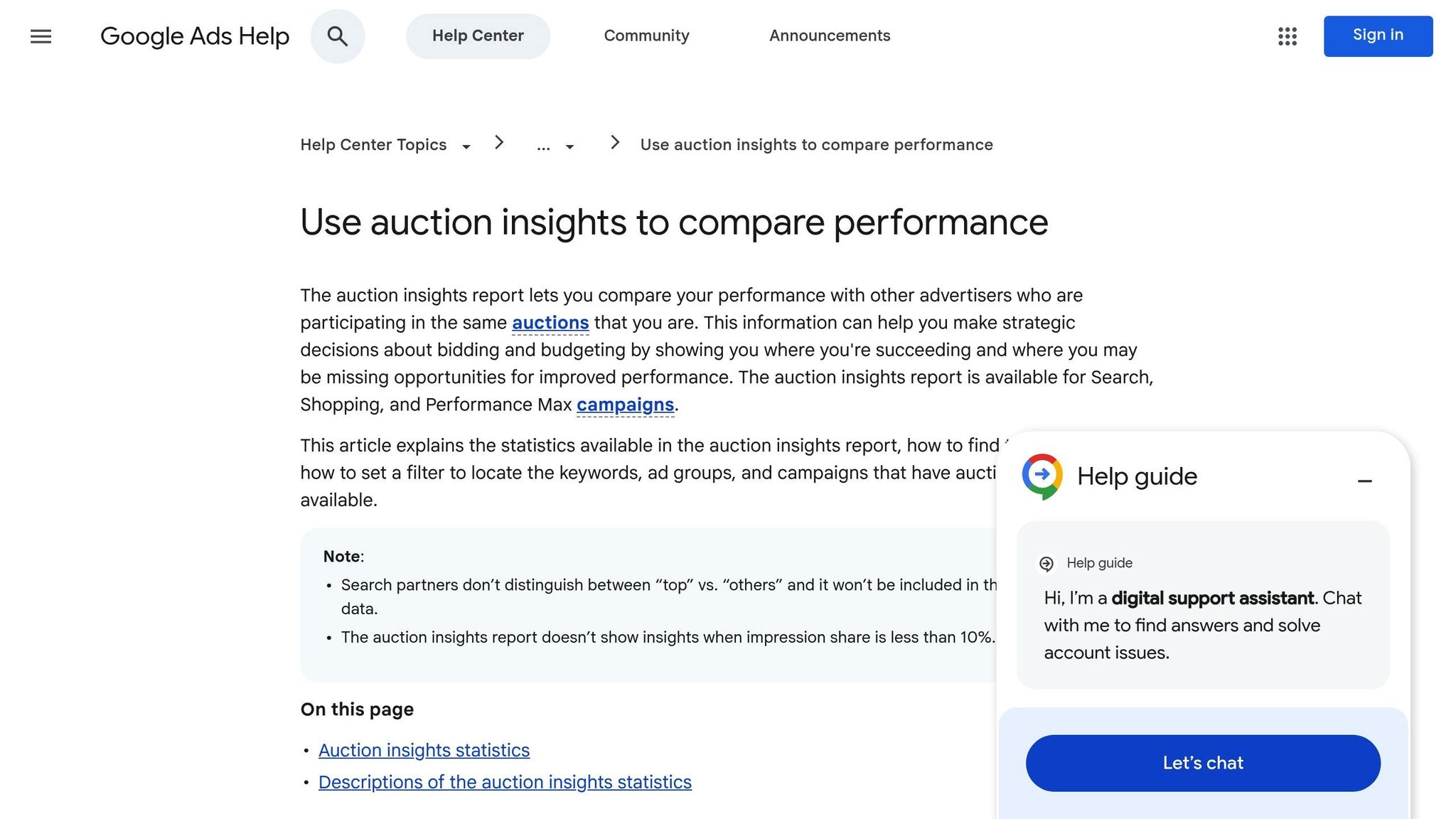
Google Ads’ Auction Insights report, found under "Insights and reports" in your dashboard for Search, Shopping, and Performance Max campaigns, is a goldmine for understanding how your ads stack up against competitors. It provides data on key metrics like:
- Impression Share: How often your competitors appear in the same auctions as you.
- Overlap Rate: How frequently their ads show alongside yours.
- Outranking Share: How often your ad ranks higher than theirs.
- Position Above Rate: How often their ad appears above yours when both are shown.
By applying filters to focus on high-intent keywords, you can pinpoint your most aggressive competitors. Break down the data by time – day of the week or month – to uncover trends. For instance, a competitor might consistently outbid you on weekends or during storm seasons. You can also analyze by device type to see if rivals dominate mobile searches, which is especially important for emergency calls.
Adapt to Seasonal Demand
While Auction Insights help you track competitor behavior, understanding and responding to seasonal trends ensures your campaigns stay effective year-round.
Demand for tree services tends to follow predictable patterns. Storm seasons often bring a surge in searches for terms like "emergency tree removal" and "storm tree cleanup". On the other hand, spring and summer lead to increased interest in trimming and shaping services as homeowners focus on maintaining their yards. By planning for these peaks and valleys, you can keep generating leads no matter the time of year.
"Seasonal strategy is important as well. Increase your bids 15-25% during storm seasons. When bad weather hits your area, emergency tree removal searches absolutely explode." – Joel Casarez, SEO Consultant
To prepare for short-term events like major storms (lasting 1–7 days), use Google Ads’ Seasonality Adjustments tool to help Smart Bidding adapt to expected changes in conversion rates. Adjust your ad scheduling to align with peak search times, which often occur around 7–9 AM, 12–1 PM, and 5–7 PM. During storm seasons, increase your daily budget and maximum CPC by 15% to 25% to capture high-value emergency searches. Additionally, review your search terms every 72 hours during these high-demand periods to uncover new high-intent keywords and refine your negative keyword list.
Step 9: Pause Low-Performing Keywords and Ads
Keeping your campaigns profitable means knowing when to pause keywords and ads that aren’t delivering results. Here’s how to identify and handle these underperformers.
Spotting Low-Performing Keywords
Start by filtering your keyword list to find the ones dragging down your campaign. Look for keywords with a Quality Score below 5 or a CTR (click-through rate) under 1% on the Search Network. A low Quality Score means Google sees your ad as irrelevant, which increases your cost-per-click. Meanwhile, a CTR under 1% signals that users aren’t engaging with your ad.
Pay close attention to keywords that rack up high impressions but generate few clicks – this is known as "impression waste." These keywords show your ad is visible but not connecting with potential customers. Similarly, keywords that get clicks but no conversions should be paused. For instance, if you’re paying $6.40 per click (the average CPC for consumer services) and a keyword hasn’t converted in 30 days, it’s time to consider pausing it.
"Pausing your keywords is easy. But it’s not always smart." – Karina Montenegro, Search Nurture
Before pausing any keyword, check your Search Terms report. Sometimes, the issue isn’t the keyword itself but the irrelevant searches it’s matching to. Adding negative keywords like "free", "jobs", or "rentals" can help cut budget waste without eliminating a potentially valuable keyword. If a keyword has a good CTR but no conversions, it might be worth auditing your landing page instead.
For newer campaigns, allow two to three weeks to collect enough data before making decisions. Keep in mind that demand for services like tree trimming can vary by season – a keyword that underperforms in January might thrive in spring when demand spikes.
Once you’ve handled underperforming keywords, shift your focus to your ad variations for similar issues.
Addressing Ineffective Ads
Ads need just as much scrutiny. Run at least three variations per ad group and pause any ad with a CTR below 1% or a high cost-per-lead.
Also, analyze performance by device. If mobile or tablet ads have a much higher cost-per-conversion compared to desktop, consider adjusting bids or pausing those ads altogether. Any budget freed up from pausing keywords or ads can be redirected to campaigns that are performing well.
One key tip: never delete keywords or ads – always pause them. This way, you preserve historical data and avoid repeating past mistakes.
For a quick reference, use the table below to guide your decisions:
| Metric | Metric Threshold | Action to Take |
|---|---|---|
| Quality Score | Below 5/10 | Improve ad relevance or pause keyword |
| CTR | Below 1% | Rewrite ad copy or refine targeting |
| Conversions | 0% after 30 days of spend | Pause keyword or audit landing page |
| Cost Per Lead | Exceeds the lead’s value | Lower bid or pause keyword |
Step 10: Test Different Ad Copy Versions
Just like monitoring and adjusting bids, testing different ad copy regularly is key to keeping your campaigns performing at their best. By experimenting with multiple ad variations, you can find out which messages truly connect with your audience and drive the most clicks and leads.
Responsive Search Ads (RSAs) make this process easier by automatically mixing and matching headlines and descriptions. This approach can increase CTR by around 6%. Running 2–3 RSAs per ad group gives the algorithm enough data to figure out which combinations work best.
Create Multiple Ad Variations
Try out messaging themes that cater to different customer needs. For instance, one ad might emphasize urgency with "Emergency Tree Removal – Available 24/7," while another focuses on cost with "Affordable Tree Trimming Services." You can also test ads that highlight benefits, like "Prevent Storm Damage," against ones that focus on features, such as "Certified Arborists on Staff".
Make sure to use all 15 headlines and 4 descriptions to maximize your testing efforts. Keep headlines under 30 characters to ensure they display well on mobile devices. You can also test different calls-to-action, like "Get a Free Estimate" versus "Call for 24/7 Service," depending on whether your audience is comparing options or needs immediate help.
"Understanding your competitor’s ‘offer’ and how they write their ads allows you to create a better offer and ad that will outperform the competition." – Brian Ferritto, Digital Marketing Strategist, 42connect, Inc.
Once you’ve developed your ad variations, evaluate their performance using A/B testing.
Analyze A/B Test Results
Run your tests for 2–4 weeks to collect enough data. Use benchmarks like a 4.99% CTR and a 4.61% conversion rate for comparison.
When reviewing results, focus on three key metrics:
- CTR (Click-Through Rate): This reveals which message grabs attention. A higher CTR means the ad’s messaging resonates well with your audience.
- Conversion Rate: This shows whether your ad attracts users who take the next step, like submitting a service inquiry.
- Cost Per Conversion: This helps identify which ad delivers leads at the lowest cost, regardless of the number of clicks.
Google Ads’ "Experiments" tool can help you compare your control ad against new variations. Look for a blue asterisk in the scorecard – it means the result is statistically significant and not just random. Once you’ve identified the best-performing ad, set your ad rotation to "Optimize" so Google prioritizes the winning version.
| Metric | What It Measures | Why It Matters |
|---|---|---|
| CTR | Percentage of users who click on the ad | Indicates whether an "Emergency" or "Affordable" message is more engaging |
| Conversion Rate | Percentage of clicks that result in a lead | Shows if the ad aligns with the landing page and drives inquiries |
| Cost Per Conversion | Average cost to acquire one lead | Helps identify the most cost-effective ad, regardless of click volume |
Conclusion
Running successful Google Ads campaigns isn’t a "set it and forget it" process – it demands consistent monitoring and fine-tuning. By sticking to this checklist, you can cut down on wasted ad spend, make every dollar count, and spot areas for improvement before they drain your budget.
Google Ads offer an impressive return, with businesses earning an average of $2 for every $1 spent. Regularly refining your keywords can improve your Quality Score by 20–25%, which lowers your cost-per-click (CPC) and boosts your ad rank. Plus, reallocating just 20% of your monthly budget based on performance data can result in an 18% higher return on ad spend.
"High-performing accounts are not accidents. They’re engineered through disciplined repetition – auditing, testing, and refining." – SeeResponse
This quote highlights the importance of staying disciplined with your campaign management. Develop a routine: check daily metrics, review search terms weekly, adjust device bids every two weeks, and conduct a full account audit each month. These habits can turn Google Ads from a risky expense into a dependable tool for bringing in quality leads. With about 85% of consumers relying on the internet to find local businesses, consistent monitoring ensures you’re reaching high-intent customers – whether they need emergency tree removal or regular tree care services.
FAQs
How can I boost my Google Ads Quality Score for better results?
To boost your Google Ads Quality Score, focus on three main components: expected click-through rate (CTR), ad relevance, and landing page experience.
Start by writing ad copy that aligns closely with your target keywords. Incorporate the primary keyword into your headline and description, and use a clear, persuasive call-to-action – something that resonates with homeowners searching for tree services. Adding ad extensions like sitelinks, callouts, and location extensions can also help increase your CTR by making your ad more engaging and informative.
Next, structure your campaigns with tightly themed ad groups. This approach ensures your ads stay highly relevant to the specific search terms they target. Don’t forget to regularly review and update your negative keywords to block irrelevant traffic, which could otherwise drag down your performance.
Lastly, pay attention to your landing page. It should load quickly, work seamlessly on mobile devices, and deliver exactly what your ad promises. Use straightforward headlines, easy navigation, and a simple contact form or phone number to create a smooth and hassle-free experience for visitors.
For tree service businesses, partnering with specialists like Tree Company Leads can make these steps much easier. They offer custom ad copy, targeted keyword strategies, and optimized landing pages to help you achieve better Quality Scores and attract more potential clients.
What are the best practices for tracking conversions in Google Ads campaigns?
To track conversions effectively in Google Ads, the first step is setting up a conversion tag (also called a global site tag). This tag helps you monitor key actions that matter to your business – like form submissions or phone calls. It’s crucial to ensure the tag is properly installed and functioning as intended.
For more detailed insights, connect your Google Ads account with Google Analytics. This integration provides access to richer data and allows you to tweak settings like conversion windows and attribution models to better align with your customer journey. It’s also a good idea to regularly check and fine-tune your tracking setup to maintain accuracy across website actions, phone calls, app engagements, and even offline conversions.
By keeping a close eye on your tracking and making adjustments as needed, you’ll be better equipped to make smarter decisions that boost campaign performance and drive a stronger return on investment (ROI).
How can I use negative keywords to make my Google Ads campaigns more cost-effective?
Negative keywords are a powerful tool to ensure your ads don’t show up for irrelevant searches. This not only saves money but also boosts your ROI. You can add these terms at either the campaign or ad group level, using phrase or exact match options.
Make it a habit to check the Search Terms report regularly. This helps you spot low-performing or unrelated queries so you can block them from triggering your ads.
By fine-tuning your keyword list, you can direct your budget toward high-quality traffic that’s more likely to turn into conversions.